Explore wood tones
See how lighter or darker wood flooring could look with your existing furniture and wall colors.
 Interia
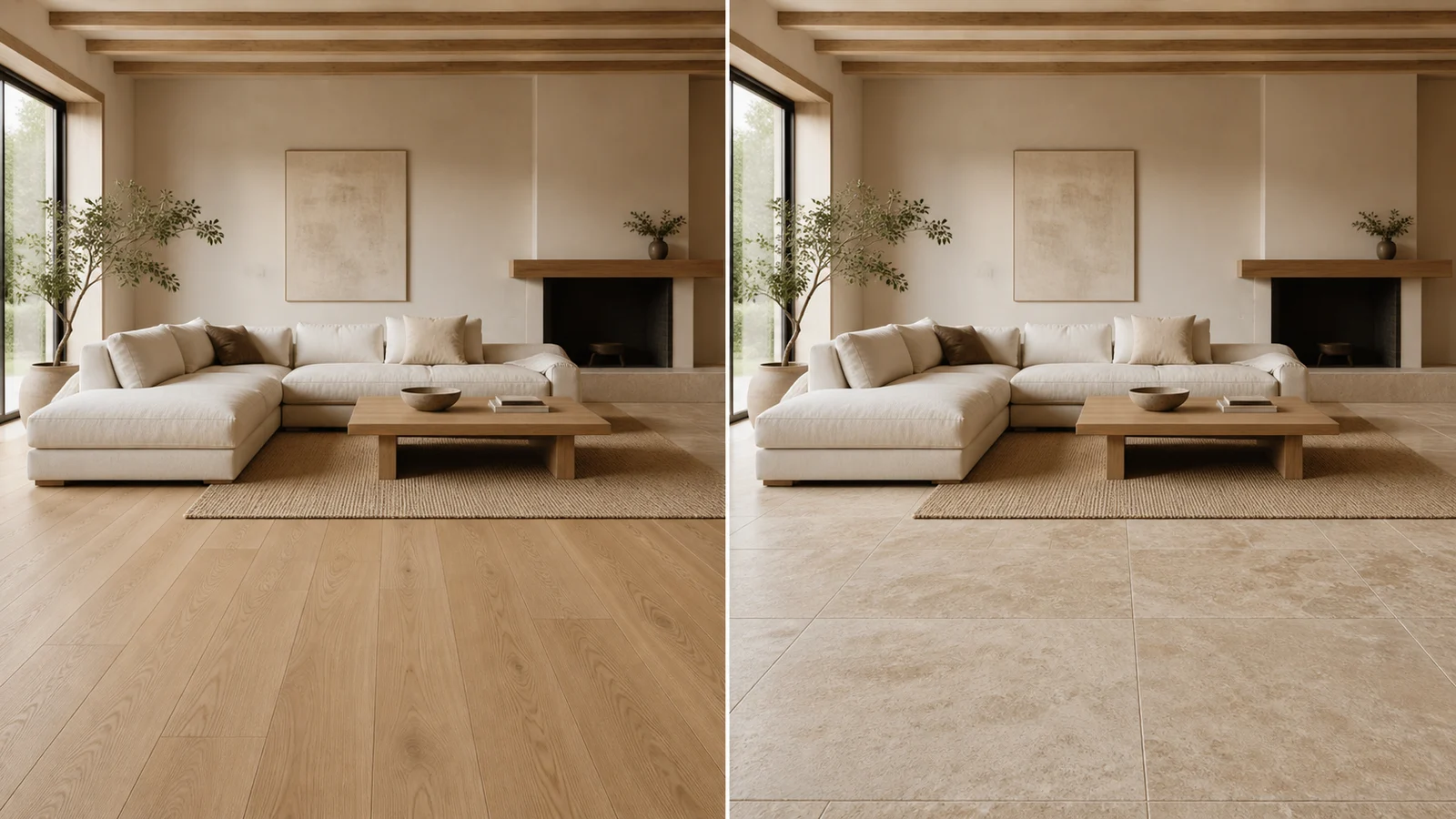
Light or dark flooring? Compare it in your room
Light wood or a darker floor? Preview wood, tile and stone on your own room photo with Interia's flooring visualizer before choosing materials for your renovation.
Ideas to explore
Compare light and dark flooring in the same room photo so the furniture and wall colors remain your reference.
See how lighter or darker wood flooring could look with your existing furniture and wall colors.
Compare tile, stone and other material ideas on the same room photo.
Save a preview you like as a visual reference when looking at real flooring products.
Interia
The more floor you can show, the easier it is to compare the overall effect.
Choose a view showing enough of the floor and the surrounding room.
Select a flooring material and one of its available variations in the app.
Look at tone, pattern and alignment alongside your original photo, then save or try another option.
Interia
Yes. Use the same source photo for separate previews, choosing the material and finish you want to explore each time.
The tool creates a visual interpretation of your selected finish. It does not guarantee an exact match to a product's color, pattern or plank dimensions.
No. It previews appearance rather than measuring the room. Check quantities, subfloor condition and installation requirements separately.
Interia
Download Interia and compare wood, tile or stone ideas in your own room.
Available for iPhone, iPad and Android